在前面的章节中,我们实现了完整的后端系统。本节将详细介绍前端交互设计,包括全屏模态对话框 UI、实时进度展示和研究结果可视化。
14.6.1 全屏模态对话框 UI 设计
深度研究助手采用全屏模态对话框的 UI 设计,这种设计有以下优势:
- 沉浸式体验:全屏显示,避免干扰,专注于研究
- 清晰的层次:主页面和研究页面分离,层次清晰
- 易于关闭:点击关闭按钮或按 ESC 键即可返回主页面
- 响应式设计:适配不同屏幕尺寸
如图 14.9 所示,全屏模态对话框包含以下部分:
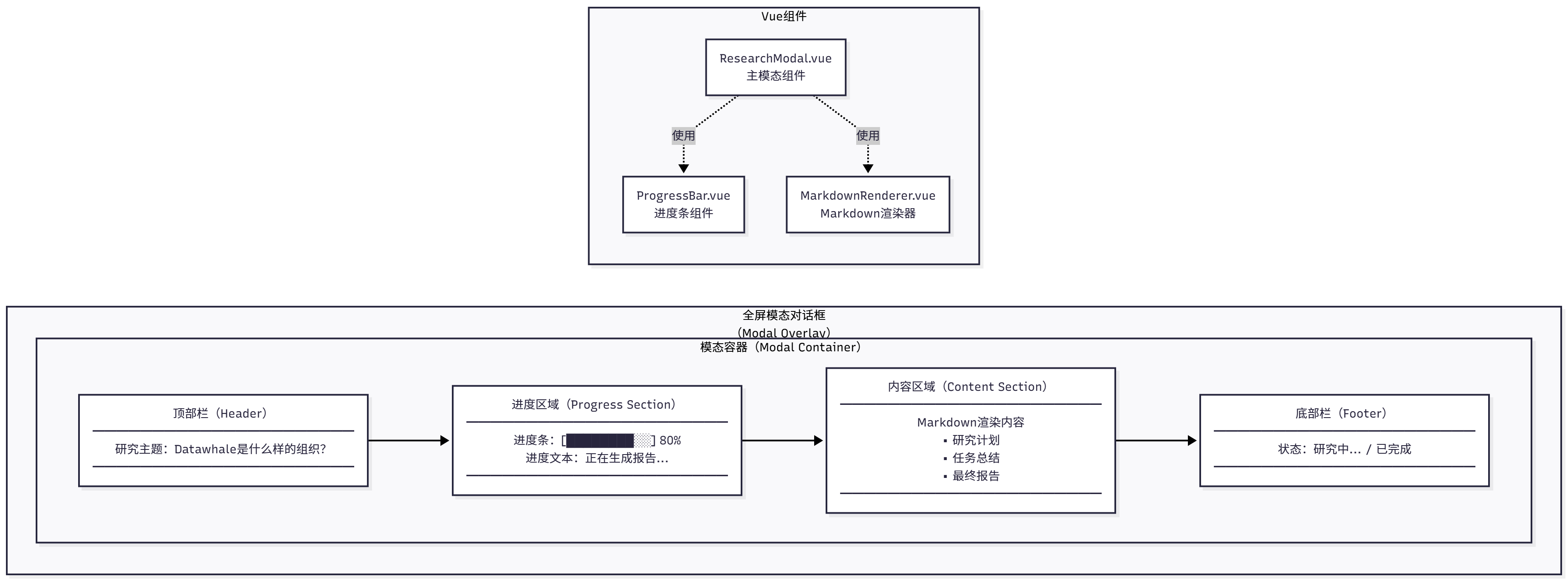
图 14.9 全屏模态对话框 UI
UI 组件:
- 顶部栏:包含研究主题和关闭按钮
- 进度区域:显示当前研究进度(规划、执行、报告)
- 内容区域:显示研究结果(Markdown 格式)
- 底部栏**:显示状态信息(如"研究中..."、"已完成")
对应的 Vue 实现如下所示(ResearchModal.vue):
<template>
  <div v-if="isOpen" class="modal-overlay" @click.self="close">
    <div class="modal-container">
      <!-- 顶部栏 -->
      <div class="modal-header">
        <h2>{{ researchTopic }}</h2>
        <button @click="close" class="close-button">
          <svg><!-- 关闭图标 --></svg>
        </button>
      </div>

      <!-- 进度区域 -->
      <div class="progress-section">
        <div class="progress-bar">
          <div
            class="progress-fill"
            :style="{ width: progressPercentage + '%' }"
          ></div>
        </div>
        <div class="progress-text">{{ progressText }}</div>
      </div>

      <!-- 内容区域 -->
      <div class="content-section">
        <div v-if="isLoading" class="loading-spinner">
          <div class="spinner"></div>
          <p>研究中,请稍候...</p>
        </div>

        <div v-else class="markdown-content" v-html="renderedMarkdown"></div>
      </div>

      <!-- 底部栏 -->
      <div class="modal-footer">
        <span class="status-text">{{ statusText }}</span>
      </div>
    </div>
  </div>
</template>

<script setup lang="ts">
import { ref, computed, watch } from 'vue'
import { marked } from 'marked'

interface Props {
  isOpen: boolean
  researchTopic: string
}

const props = defineProps<Props>()
const emit = defineEmits<{
  close: []
}>()

// 状态
const isLoading = ref(true)
const progressPercentage = ref(0)
const progressText = ref('准备中...')
const statusText = ref('研究中...')
const markdownContent = ref('')

// 渲染Markdown
const renderedMarkdown = computed(() => {
  return marked(markdownContent.value)
})

// 关闭模态框
const close = () => {
  emit('close')
}

// 监听ESC键
const handleKeydown = (e: KeyboardEvent) => {
  if (e.key === 'Escape') {
    close()
  }
}

// 挂载时添加键盘监听
watch(() => props.isOpen, (isOpen) => {
  if (isOpen) {
    document.addEventListener('keydown', handleKeydown)
  } else {
    document.removeEventListener('keydown', handleKeydown)
  }
})
</script>

<style scoped>
.modal-overlay {
  position: fixed;
  top: 0;
  left: 0;
  width: 100vw;
  height: 100vh;
  background-color: rgba(0, 0, 0, 0.5);
  display: flex;
  justify-content: center;
  align-items: center;
  z-index: 1000;
}
......
</style>
为了适配不同屏幕尺寸,我们添加媒体查询:
/* 平板设备 */
@media (max-width: 768px) {
  .modal-container {
    width: 95vw;
    height: 95vh;
  }

  .modal-header,
  .progress-section,
  .content-section,
  .modal-footer {
    padding: 15px 20px;
  }
}

/* 手机设备 */
@media (max-width: 480px) {
  .modal-container {
    width: 100vw;
    height: 100vh;
    border-radius: 0;
  }

  .modal-header h2 {
    font-size: 18px;
  }
}
14.6.2 实时进度展示
深度研究助手使用 SSE 实现实时进度展示。SSE 是一种服务器推送技术,允许服务器主动向客户端发送数据,在协议章节也有所讲解。
如图 14.10 所示,SSE 流程包括以下步骤:
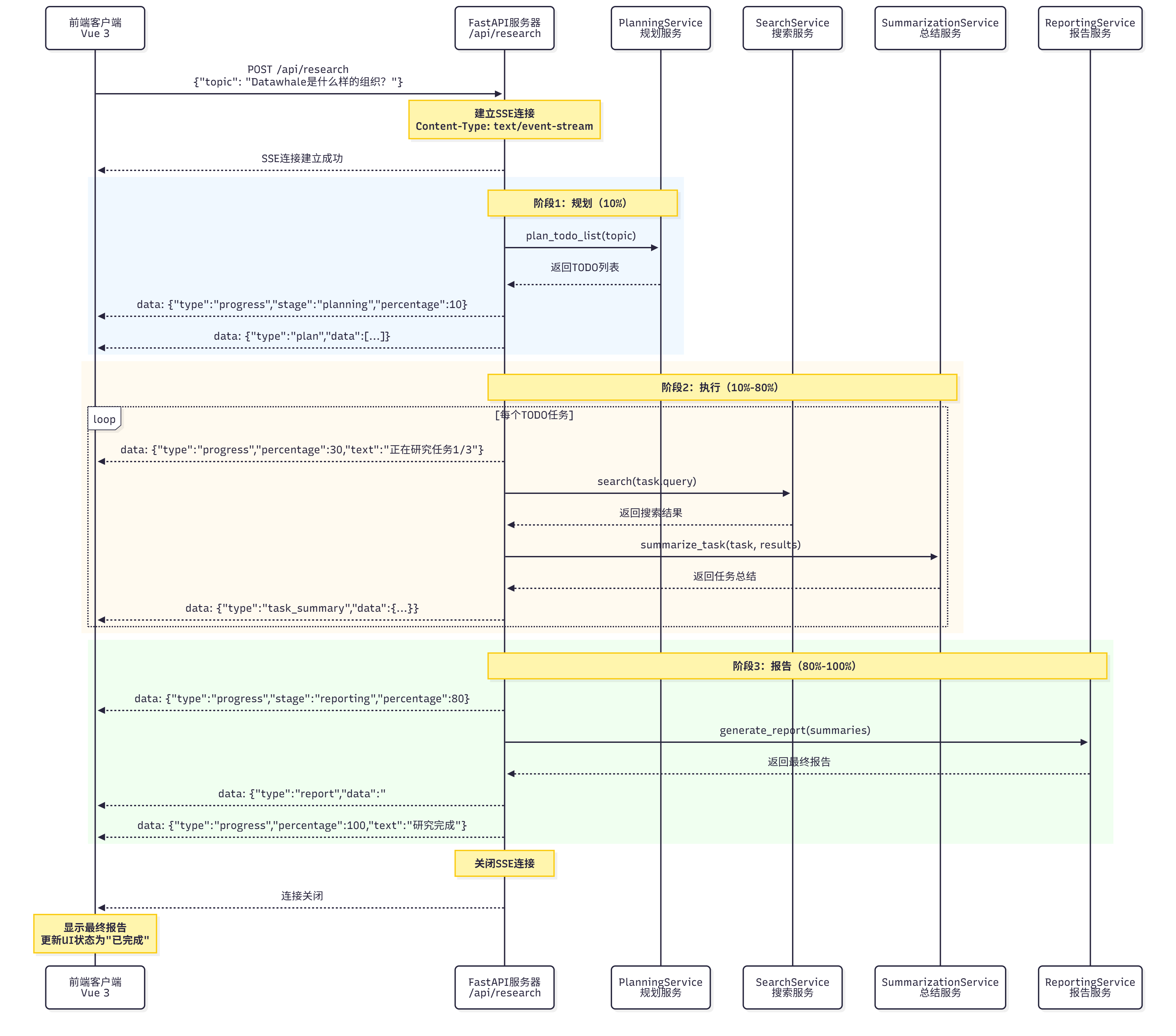
图 14.10 SSE 流程
流程说明:
- 客户端发起请求:发送 POST 请求到
/api/research,包含研究主题 - 服务器建立 SSE 连接:返回
text/event-stream响应 - 服务器推送进度:定期推送研究进度(规划、执行、报告)
- 客户端接收进度:监听 SSE 事件,更新 UI
- 研究完成:服务器推送最终报告,关闭连接
如果想把 SSE 用于前后端的项目中还需要做如下配置。
后端 FastAPI SSE 端点:
from fastapi import FastAPI
from fastapi.responses import StreamingResponse
from typing import AsyncGenerator
import asyncio
import json

app = FastAPI()

async def research_stream(topic: str) -> AsyncGenerator[str, None]:
    """研究流式生成器

    生成SSE格式的数据:
    data: {"type": "progress", "data": {...}}

    """
    try:
        # 1. 规划阶段
        yield f"data: {json.dumps({'type': 'progress', 'stage': 'planning', 'percentage': 10, 'text': '正在规划研究任务...'})}\n\n"

        # 调用PlanningService
        todo_items = await planning_service.plan_todo_list(topic)

        yield f"data: {json.dumps({'type': 'plan', 'data': [item.dict() for item in todo_items]})}\n\n"

        # 2. 执行阶段
        task_summaries = []
        for idx, task in enumerate(todo_items, start=1):
            # 更新进度
            percentage = 10 + (idx / len(todo_items)) * 70
            yield f"data: {json.dumps({'type': 'progress', 'stage': 'executing', 'percentage': percentage, 'text': f'正在研究任务{idx}/{len(todo_items)}:{task.title}'})}\n\n"

            # 搜索
            search_results = await search_service.search(task.query)

            # 总结
            summary, source_urls = await summarization_service.summarize_task(task, search_results)

            task_summaries.append((task, summary, source_urls))

            # 推送任务总结
            yield f"data: {json.dumps({'type': 'task_summary', 'task_id': task.id, 'summary': summary})}\n\n"

        # 3. 报告阶段
        yield f"data: {json.dumps({'type': 'progress', 'stage': 'reporting', 'percentage': 90, 'text': '正在生成最终报告...'})}\n\n"

        # 生成报告
        report = await reporting_service.generate_report(topic, task_summaries)

        # 推送最终报告
        yield f"data: {json.dumps({'type': 'report', 'data': report})}\n\n"

        # 完成
        yield f"data: {json.dumps({'type': 'progress', 'stage': 'completed', 'percentage': 100, 'text': '研究完成!'})}\n\n"

    except Exception as e:
        # 错误处理
        yield f"data: {json.dumps({'type': 'error', 'message': str(e)})}\n\n"

@app.post("/api/research")
async def research(request: ResearchRequest):
    """研究端点(SSE)"""
    return StreamingResponse(
        research_stream(request.topic),
        media_type="text/event-stream",
        headers={
            "Cache-Control": "no-cache",
            "Connection": "keep-alive",
        }
    )
前端使用 EventSource 接收 SSE:
// composables/useResearch.ts
import { ref } from 'vue'

export function useResearch() {
  const isLoading = ref(false)
  const progressPercentage = ref(0)
  const progressText = ref('')
  const markdownContent = ref('')
  const error = ref<string | null>(null)

  const startResearch = (topic: string) => {
    isLoading.value = true
    error.value = null

    // 创建EventSource
    const eventSource = new EventSource(`/api/research?topic=${encodeURIComponent(topic)}`)

    // 监听消息
    eventSource.onmessage = (event) => {
      const data = JSON.parse(event.data)

      switch (data.type) {
        case 'progress':
          progressPercentage.value = data.percentage
          progressText.value = data.text
          break

        case 'plan':
          // 显示规划结果
          console.log('规划结果:', data.data)
          break

        case 'task_summary':
          // 追加任务总结到Markdown
          markdownContent.value += `\n\n## 任务${data.task_id}\n\n${data.summary}`
          break

        case 'report':
          // 显示最终报告
          markdownContent.value = data.data
          break

        case 'error':
          error.value = data.message
          eventSource.close()
          isLoading.value = false
          break

        case 'completed':
          eventSource.close()
          isLoading.value = false
          break
      }
    }

    // 错误处理
    eventSource.onerror = (err) => {
      console.error('SSE错误:', err)
      error.value = '连接失败,请重试'
      eventSource.close()
      isLoading.value = false
    }
  }

  return {
    isLoading,
    progressPercentage,
    progressText,
    markdownContent,
    error,
    startResearch,
  }
}
在组件中使用:
<script setup lang="ts">
import { useResearch } from '@/composables/useResearch'

const {
  isLoading,
  progressPercentage,
  progressText,
  markdownContent,
  error,
  startResearch
} = useResearch()

const handleStartResearch = (topic: string) => {
  startResearch(topic)
}
</script>
14.6.3 研究结果可视化
研究结果以 Markdown 格式展示,包含标题、段落、列表、引用等元素。我们使用marked库将 Markdown 转换为 HTML,并添加自定义样式。
渲染 Markdown:
import { marked } from 'marked'

// 配置marked
marked.setOptions({
  breaks: true,  // 支持换行
  gfm: true,     // 支持GitHub Flavored Markdown
})

// 渲染
const renderedHtml = marked(markdownContent.value)
研究报告中包含大量来源引用,我们需要特殊处理:
## 参考文献

### 任务1:Datawhale的基本信息
- [Datawhale GitHub](https://github.com/datawhalechina)
- [Datawhale 官网](https://datawhale.club)

### 任务2:Datawhale的主要项目
- [Hello-Agents 教程](https://github.com/datawhalechina/Hello-Agents)
......
通过全屏模态对话框 UI、SSE 实时进度展示和 Markdown 结果可视化,我们构建了一个用户友好的前端界面。用户可以清晰地看到研究进度,并以美观的格式查看研究结果。